IGES to OBJ
Convert IGES or IGS geometry to an OBJ package for mesh editing and rendering.
Your model goes here.
Choose your file or try the original sample below. No installation or sign-up.
01 / HOW IT WORKS
Open, inspect, then use your result.
- 01
Open your file
Choose, drop or paste your IGES file. All three input methods use the same local checks.
- 02
Look from every angle
Orbit, zoom and switch between standard views. Read the dimensions and object count beside the model.
- 03
Download the converted file
After conversion, download OBJ + MTL (ZIP). Open the result in your destination software and check the units before use.
02 / TRY IT YOURSELF
A real file. A result you can check.
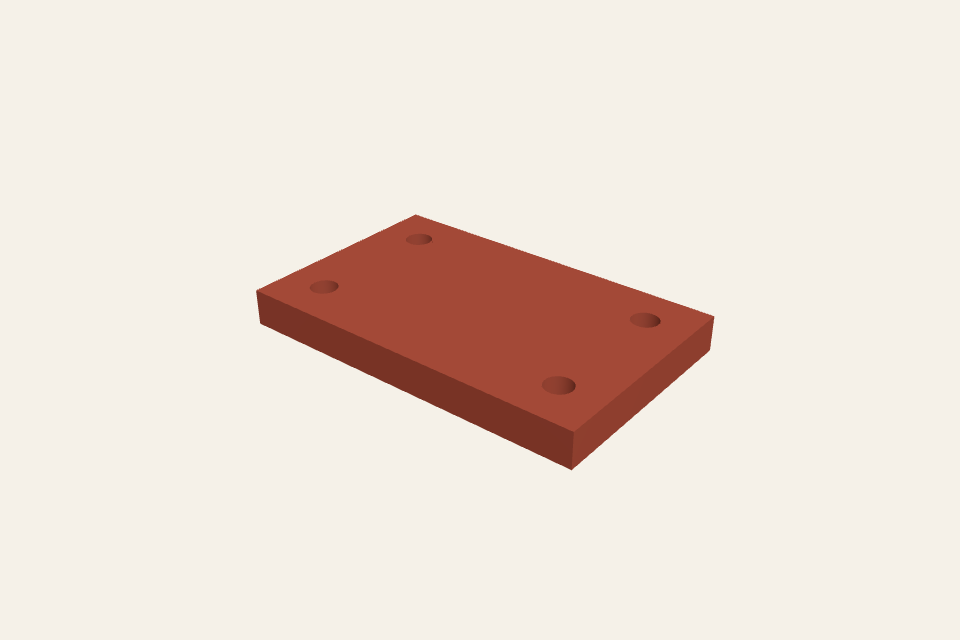
This original four-hole plate measures 80 × 50 × 8 mm. The sample uses the input format for this page. Use the default unit and axis settings to reproduce those dimensions.
Original public sample. Your uploads are never added to this gallery.
03 / FORMAT & USE
IGES to OBJ
Download an OBJ and material file together. Keep both files in the same folder when opening the model.
What this viewer supports
Standard text IGES/IGS only: up to 32 MiB and one million triangles. Tessellation uses a 0.05 mm deflection setting; verify approximation accuracy downstream. Colors, layers and annotations are not retained. No surface repair.
Supports files up to 32 MiB, 1 million triangles and 2,000 mesh objects. For larger assemblies, export only the parts you need.
04 / QUESTIONS
Know your input. Understand your output.
What does the OBJ download include?
A mesh and its material file in a ZIP. Coordinates use millimetres and Y-up. IGES layers, annotations, surface definitions and original colors are not retained.
Do I need an account or credits?
No. These tools are free and run in your browser. No account, subscription or credits are required.
Is my model uploaded?
No. Your selected file is read and processed in this browser. The page downloads its CAD engine and public samples, but does not upload your model. Refreshing or leaving the page clears the current file from the tool.
How are units and orientation handled?
Dimensions use millimetres with Z up. GLB uses metres with Y up; exported STL is mm/Z-up and OBJ is mm/Y-up.
Can I paste a file from my computer?
Copy a file in your file manager, then paste here. Your browser must expose the clipboard as a file; a copied path or text will not open a model.