DXF Viewer
Inspect planar DXF linework and its millimeter dimensions.
Your model goes here.
Choose your file or try the original sample below. No installation or sign-up.
01 / HOW IT WORKS
Open, inspect, then use your result.
- 01
Open your file
Choose, drop or paste your DXF file. All three input methods use the same local checks.
- 02
Look from every angle
Choose the drawing parameters and apply them. Inspect the resulting outlines or solid before downloading.
- 03
Check the essentials
Read the mesh object count and overall dimensions. Clear the file when you are done or open another model.
02 / TRY IT YOURSELF
Inspect the sample in the workspace
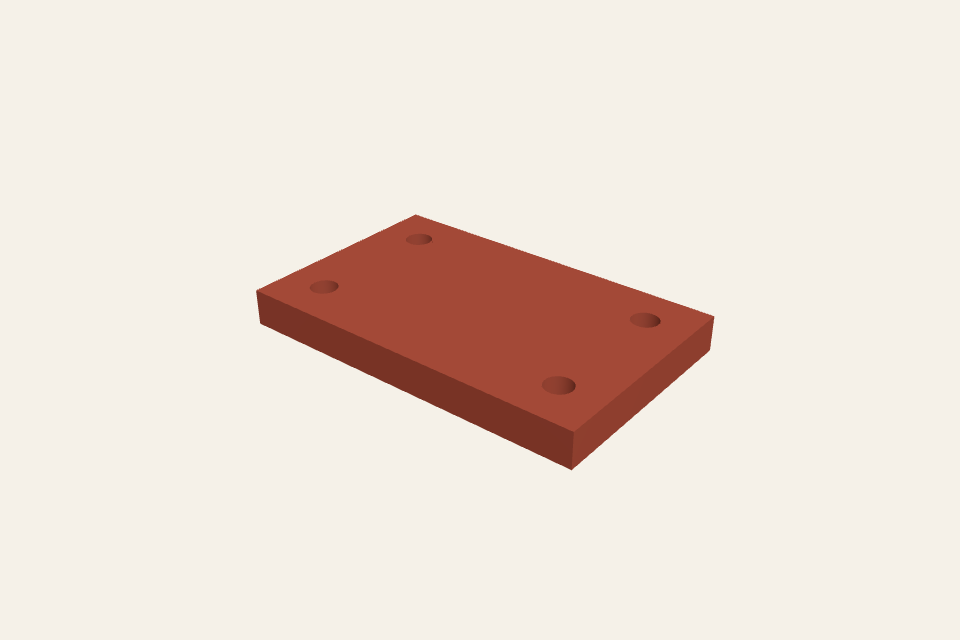
Use the sample to inspect closed outlines and holes, then apply your own output size or projection plane.
Original public sample. Your uploads are never added to this gallery.
03 / FORMAT & USE
DXF Viewer
Inspect planar DXF linework and its millimeter dimensions.
What this viewer supports
Planar LINE, LWPOLYLINE, POLYLINE, CIRCLE and ARC only. Blocks, text, dimensions, splines, bulges, line widths and non-XY entities are rejected. Unitless DXF uses your selected unit. Curves are sampled; open or branching contours cannot be extruded. DXF input is limited to 8 MB and 5,000 entities.
04 / QUESTIONS
Know your input. Understand your output.
What should I export from my drawing app?
Export only the supported vector outlines. Remove annotations and references. For STL, close all contours and check the preview before downloading. This tool refuses unsupported content instead of silently dropping it.
Do I need an account or credits?
No. These tools are free and run in your browser. No account, subscription or credits are required.
Is my model uploaded?
No. Your selected file is read and processed in this browser. The page downloads its CAD engine and public samples, but does not upload your model. Refreshing or leaving the page clears the current file from the tool.
How are units and orientation handled?
Dimensions use millimetres with Z up. GLB uses metres with Y up; exported STL is mm/Z-up and OBJ is mm/Y-up.
Can I paste a file from my computer?
Copy a file in your file manager, then paste here. Your browser must expose the clipboard as a file; a copied path or text will not open a model.